Navigate to “Find Work” to display the sub navigation options listed as “Technology Jobs” and “Finance and Accounting Jobs.” Activate either of these options to begin searching for jobs.
Enter keywords such as job titles and/or skill sets in the search field. In the “Location” field, start typing the city you are interested in searching and then select the city from the list of cities in the type-ahead dropdown list.
Activate the "Search" button, which appears as a magnifying glass, to begin your search.
On the search results page, you can scan through each job in the list. Click the “Job Title” option to view the complete job posting.
To refine your job search results, use the “Advanced” option, which is located next to the “Location” search field.
When the “Advanced” option is selected, four additional search parameters will be displayed on the screen. You will be able to specify the particular “Industry,” “Specialty,” “Job Type,” and “Career Level” you are searching for.
Once you have added the search parameters you want, activate the “Search” button to refresh your search results list.
Create a job alert
You can get results from your search criteria emailed to you automatically. On the search results page, navigate to the “Save as a Job Alert” button in the search banner.
When you activate this button, a pop-up window will appear on the screen with a list of fields to complete. You will be prompted to name your alert, enter your name and email address, and specify additional parameters.
Once you have saved your job alert, you will begin receiving an email each day with new jobs that match your search criteria. You may change the frequency of those emails (including unsubscribing to the email) by selecting the “Unsubscribe” link in the footer of the email.
Upon selecting the “Unsubscribe” link, you will be directed to a page that allows you to select which jobs alerts you would like to deactivate if you have created more than one. Select the check box next to the job alert you wish to unsubscribe from and active the “Unsubscribe” button at the bottom of this page.
Apply for jobs
You apply for a job from the “Job Description” page. In order to do so, click the job title for the job you are interested in. To apply for the job, activate the “Apply Today” or “Apply with Monster” button on the right side of the Job Title.
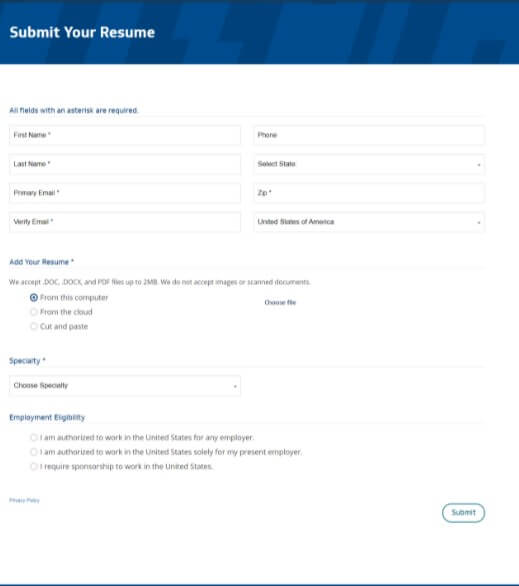
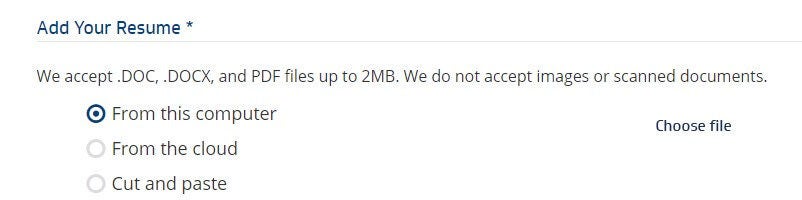
All jobs allow you to apply online by uploading a resume from your local computer, or from the cloud using services such as “Google Drive,” “Dropbox,” or your Monster account. Additionally, you have the option to copy/paste your resume into a text area.
Apply with Monster (Starting on Kforce.com)
If you would like to apply for a job using your Monster profile information and resume, activate the “Apply with Monster” button from the job description page. You may also reach the “Apply with Monster” option from the “Apply Online” form. When this button is selected, a pop-up window will appear on the screen and prompt you to enter your Monster login credentials. Activate the “Sign In” button after filling in your email address and password.
Once logged in, you will be able to select the resume you would like to upload. After selecting the “Continue” button, you will be directed to the “Apply Online” form to fill in the remaining fields necessary to apply to this particular job.
Your first name, last name, email address, and resume should be automatically populated on this form from your Monster profile. In addition, you will be able to validate that your Monster resume uploaded successfully, if there is a green check mark located next to the resume file name.